Bluelake Document Edit Utility for Kofax
Overview
The Bluelake Document Indexing Utility for Kofax enables
editing of document index values (meta data) from within the Ascent Capture
Scan or Quality Control Modules. It is particularly useful in Kofax Capture
workflows that feature automated validation, where exceptions are routed to
Quality Control. Editing of meta data values can be completed within Quality
Control without having to reroute documents through the Validation queue.
Features
- Accessible via right click option in Scan and Quality Control Modules Kofax menus
- Update Batch or Document level fields including hidden fields and table fields
System
Requirements/Compatibility:
Kofax Version 11.1 or above (contact us for earlier supported versions)
Download and
Installation:
A demo download of the application is available at our
website at http://www.bluelake.com/Products
After download, double-click on the exe file to invoke the
install. The demo download provides a 30 day 100 use version of the
product, which can be converted to a permanent copy by purchasing a license.
Pricing:
|
Qty 1 |
Qty 3 |
Qty 5 |
Qty 10 |
> 10 |
|
$250 |
$600 |
$750 |
$1000 |
$100 each |
User Instructions
After installation, when opening the Kofax Scan or Quality
Control Modules, a new option will be visible when right clicking at the batch
or document level within the batch contents pane, as shown below.
Editing Document Fields
Right click on a defined document and select Edit Document
Fields as shown above, left. The application window will appear as shown below.
Kofax meta data fields are formatted according to their
type:
Hidden Fields - Italicized text
Table Fields - Blue text
Required Fields - Bold text
Standard fields - Standard text
To change the value contained in a field, click the cursor into the field value column and make the change:
To change the value contained in a field, click the cursor into the field value column and make the change:

Note on
Table Fields
It is only possible to modify existing table field instances
within Document Edit for Kofax, not
add additional instances. To add additional table field instances, the batch
class must be rerouted to the Validation module, where the standard Cntl + I
command can be used to add additional instances of a table field.
Delete an instance of
a table field:
It is possible to delete instances of table fields from
within Document Edit for Kofax –
except for the initial instance -- by right-clicking on the table field, as
shown below:
Product Licensing Instructions
When first installed, a 30-day, 100 use license will be created. When first installed, a temporary 14 day, 100 use license
will be created. The license can be extended or converted to
a permanent license with a license key. To extend the temporary license or to
purchase a permanent license code, please contact Bluelake Software.
Activating a License Key
To activate a license key, open a Batch in Batch Manager in
one of the applicable Kofax modules – Scan, Quality Control, etc., and click to
invoke one of the options:
You might see the following message if the license has
expired. Click OK to continue.
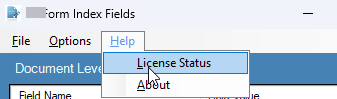
From the resulting application window select Help, License Status.
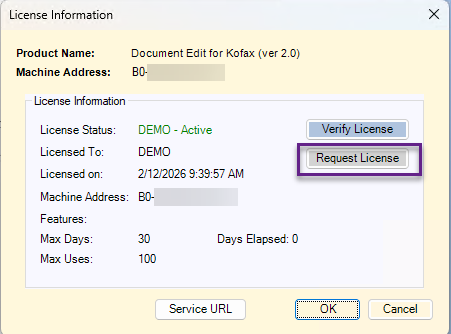
On the License Information window click the Request License button:
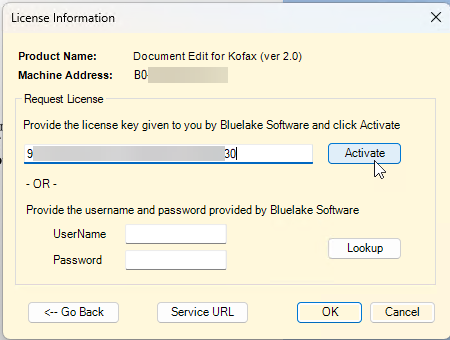
On the resulting License Activation window copy and paste
the license key into the Activation box and click the Activate button:
Select OK to overwrite the existing (expired or temp) license:
Select OK to overwrite the existing (expired or temp) license:
The
License Creation Successful message sh0uld be displayed – click OK to close:
Click OK to close the license window:
For more information or to purchase
licenses, please contact:
Bluelake Software, Inc.
www.bluelake.com
www.bluelake.com